Thursday, September 23, 2010

BLOGGER TEMPLATE : FIREBUG THEME RELOADED

Firebug is actually a wordpress theme developed by Blog oh ! Blog. After getting permission from the site Author Jai , I have successfully converted that Firebug Theme to Blogger Template. I made some modifications to that theme to make that even better.

firebug Reloaded Blogger Template

firebug Reloaded Blogger Template
Firebug reloaded theme is for those who like Dark Backgrounds.

Main features of FireBug Reloaded :

* Adsense Ad 468 x 60 on header right side.

- To suit the header background , please apply these settings in adsense ad set-up.

Adsense Ad customization to suit Firebug Blogger template


Adsense Ad customization to suit Firebug Blogger template
If you want to use search form instead of Adsense Ad then Please Insert this Code in the HTML widget.
< <div id=”topsearch”>

<form id=”searchForm” action=”/search” method=”get”>
<input id=”s” class=”swap_value” value=”Enter your keywords here” name=”q” type=”text”>
<input id=”go” alt=”Search” src=”http://i286.photobucket.com/albums/ll96/themelib/firebug/go.gif” title=”Search” type=”image”>
</form>
</div>
<div class=”clear”>

</div>

* Page Navigation Menu Hack with some Bugs fixed.
Page Navigation hack for Firebug theme


Page Navigation hack for Firebug theme
* Top navigation Menu with Date calender on Right side.

* Subscription Form on Sidebar.

- To have subscription form on sidebar , please insert this code in a HTML/JAVASCRIPT widget.
<a href=”http://feeds.feedburner.com/TechnoWizard” class=”rss” rel=”alternate” type=”application/rss+xml”>Subscribe via RSS</a> | <a href=”http://feeds.feedburner.com/TechnoWizard“>Comments (RSS)</a>
<br/><br/>

<form action=”http://www.feedburner.com/fb/a/emailverify” target=”popupwindow” method=”post” onsubmit=”window.open(‘http://www.feedburner.com’, ‘popupwindow’, ’scrollbars=yes,width=550,height=520&#8242;);return true”>Or, subscribe via email: <input class=”subscribetext” name=”email” type=”text”/><input value=”http://feeds.feedburner.com/~e?ffid=1488667” name=”url” type=”hidden”/><input value=”Blogger Accessories” name=”title” type=”hidden”/><input value=”en_US” name=”loc” type=”hidden”/> <input value=”Subscribe” class=”subscribebutton” type=”submit”/></form>

Please replace the text in RED with your own links and code.
* Related posts Widget is Installed.

* Social Bookmarking Widget is also included.

- I have included Post submission links only for Top 10 Bookmarking sites. If you want to include more sites , ask in Comment form I will send the code for remaining sites also.

* Comments with Mybloglog feature enabled. I will write a post soon on this hack.

* Three 125 x 125 Ads section on sidebar.

- To enable this feature , please copy and paste the code.
<a href=”#Advertise” class=”ads”><img border=”0&#8243; alt=”Ad” src=”http://i263.photobucket.com/albums/ii150/mohamedrias/ad.gif”/></a>


I hope you will encourage me to create more templates like these.
If you guys need any Blogger Hack or modification , please tell me in comment form . I can even modify template to your wish for free.

FRAMED THREE COLUMN BLOGGER TEMPLATE

Today I am going to Introduce my third three Column Blogger Template called ” Framed Blogger Template”. I am Calling it as Framed Blogger template , because this Template has borders for each section like header , Content , sidebar , etc. Now I am testing this Blogger Template in my own Blog.
 Framed three Column Blogger template
Main features of this Framed Blogger Template :

1. On the right side of the header you can see two widgets in your Layout section ( both are locked). In Top HTML widget you can add Adsense ad or any other HTML code.

The bottom Top Menu widget is only for showing navigation links.
Adsense Ad with navigation menu 2. Author Comments in different style hack is included. 3. Page navigation Hack.
– In this framed Blogger template I am introducing my next Page Navigation widget with some bugs fixed and with a new CSS style. Now this Page Navigation widget contains links for First page and Last page.
Page Navigation Menu 4. Two sidebars on right side. ( 180px and 280px ) 5. Best adsense Placement options for higher CTR.
6. Related posts Widget is included.
7. Adsense ad 468 x 60 is placed at the bottom of the post , please replace the code with yours. ( this adsense ad will be shown only in Post pages. I will write an article on this very soon)
This work is done under Creative Commons License 3.0 , so please don’t remove the footer credits.
you can modify the script to suit your template , but you can’t redistribute any script included in this template , without my permission.
Demo of Framed Blogger template
I hope you will welcome this Blogger template and encourage me to create more templates like these.

Blogger Accessories Three Column Blogger Template

Today I am going to Publish my first Three Column Blogger Template. This Three Column Blogger Template has two sidebars on Left and Right side with Content in Center. This three column template contains valid CSS .
 Blogger Accessories three column blogger Template
Main Features of this Three Column Blogger Template.
* Adsense 468 x 60 ad on header top

*******************************

I have added two page elements in header section , so just add the adsense code or any other code to the HTML/Javascript element. Adsense Ad in Header
You can see in the image , there is a HTML widget on right side , Add Adsense ad code there.
* SEO page title Hack is also included.
* Navigation Menu is included
* Numbering Blogger Comments Hack is also included.
* Unique CSS style for Author comments is also included inorder to distinguish author comments from others.
* Display only specific number of posts in Lables Page hack included.
* Related Posts Widget is also included
* Page Navigation Menu of my CSS style.
*Comment Form is embedded below each post.

This Work is done under creative commons License 3.0
So please don’t remove the footer credits.
If you want to see the template in Action , please have a look at my own Blog because I am using this template only.
I hope all of you will welcome this new three column template. Please leave a comment so that i can modify this template further.

Adsense Video Units Ads is available for All Now – Adsense Player

Today I have got a great information to you all guys. We all know that Google Adsense is going to retire Referral ads by this end of August 2008 . Now they have several future plans , One among them is Adsense Video Units is available to all now.
Before this latest announcement , Google Adsense video units are available only to US citizens. But now they have made it available to all .

Why should we prefer Adsense Video Units ?

When compared with Adsense Text ads , Image ads and referral ads( retired ) , Adsense Video ads have Higher Cost Per Click ( CPC )and click through rates. So with Adsense Video units Ads , we can make more money now.
How To Add Google Adsense Video units Ad ? Login in this page : Youtube Adsense player . Then create Adsense Video player by changing settings and click generate code . After doing so put the code to you website.
Conclusion :
Adsense Video player is a best tool to make Money Online. So I want all Adsense users will welcome this new feature and make it grant success.

Display CSS codes and Scripts in unique Style – Blogger Post Styling hack

All of you might have noticed that in my blogger posts I use a custom CSS style to show CSS codes , Scripts and other important notes. After looking at this cool features one of my reader asked me how to do this. So I am Posting this ” Post Styling Hack for blogger to display scripts and CSS codes in unique style ” .
 Blogger Post Styling Hack

Just Follow This steps to add this ” Post Styling Hack ” to your Blog .

Step 1 :
Login to your Blogger account and navigate to Layout section . Then go to Edit Html subtab .
No Need to Check Expand Widgets Box
Step 2 : Add This CSS code above this line ]]></b:skin> .


.codeview {
margin : 15px 35px 15px 15px;
padding : 10px;
clear : both;
list-style-type : none;
background : #f9f9f9 url(http://i263.photobucket.com/albums/ii150/mohamedrias/cv-1.gif) no-repeat right bottom;
border-top : 1px solid #eeeeee;
border-right : 2px solid #cccccc;
border-bottom : 2px solid #cccccc;
border-left : 1px solid #eeeeee;
}
.codeview li {
font-size : 13px;
line-height : 24px;
font-family : “Courier New”, “MS Sans Serif”, sans-serif, serif;
color : #333333;
font-weight : normal;
margin : 0;
padding : 0;
}
See Screenshot Below for Instructions :
Blogger Post Styling Hack
you can change the text in red to your wish to suit your Template.
Step 3 :
Whenever you create new posts just include the speical Script ( CSS code , Scripts , etc ) within this div section .
<div class=”codeview”>

Insert the Special code here

</div>
Don’t use id instead of class
that’s it you have add this post Styling hack to your blogger template .
 Blogger Post Styling Hack
See you soon with a new hack . please tell your suggestions to this post. It will help me to improve the standard of this hack.

Page Navigation Menu Widget for Blogger

Let us see how to add this Page Navigation Menu Widget :
Page Navigation 
Menu Widget

step 1 : Login to your Blogger account and Navigate to Layout Section . Now click Add Page Element link there.
Step 2 : In that Page Element window , choose HTML / JAVASCRIPT .
Step 3 : Now add this Javascript in that window.

<style>
.showpageArea {padding: 0 2px;margin-top:10px;margin-bottom:10px;
}
.showpageArea a {border: 1px solid #505050;
color: #000000;font-weight:normal;
padding: 3px 6px !important;
padding: 1px 4px ;margin:0px 4px;
text-decoration: none;
}
.showpageArea a:hover {
font-size:11px;
border: 1px solid #333;
color: #000000;
background-color: #FFFFFF;
}

.showpageNum a {border: 1px solid #505050;
color: #000000;font-weight:normal;
padding: 3px 6px !important;
padding: 1px 4px ;margin:0px 4px;
text-decoration: none;

}
.showpageNum a:hover {
font-size:11px;
border: 1px solid #333;
color: #000000;
background-color: #FFFFFF;

}
.showpagePoint {font-size:11px;
padding: 2px 4px 2px 4px;
margin: 2px;
font-weight: bold;
border: 1px solid #333;
color: #fff;
background-color: #000000;

}

.showpage a:hover {font-size:11px;
border: 1px solid #333;
color: #000000;
background-color: #FFFFFF;

}
.showpageNum a:link,.showpage a:link {
font-size:11px;
padding: 2px 4px 2px 4px;
margin: 2px;
text-decoration: none;
border: 1px solid #0066cc;
color: #0066cc;
background-color: #FFFFFF;}

.showpageNum a:hover {font-size:11px;
border: 1px solid #333;
color: #000000;
background-color: #FFFFFF;
}
</style>

<script type=”text/javascript”>

function showpageCount(json) {
var thisUrl = location.href;
var htmlMap = new Array();
var isFirstPage = thisUrl.substring(thisUrl.length-14,thisUrl.length)==”.blogspot.com/”;
var isLablePage = thisUrl.indexOf(“/search/label/”)!=-1;
var isPage = thisUrl.indexOf(“/search?updated”)!=-1;
var thisLable = isLablePage ? thisUrl.substr(thisUrl.indexOf(“/search/label/”)+14,thisUrl.length) : “”;
thisLable = thisLable.indexOf(“?”)!=-1 ? thisLable.substr(0,thisLable.indexOf(“?”)) : thisLable;
var thisNum = 1;
var postNum=1;
var itemCount = 0;
var fFlag = 0;
var eFlag = 0;
var html= ”;
var upPageHtml =”;
var downPageHtml =”;

var pageCount=5;
var displayPageNum=3;
var firstPageWord = ‘First’;
var endPageWord = ‘Last’;
var upPageWord =’Previous’;
var downPageWord =’Next’;

var labelHtml = ‘<span class=”showpageNum”><a href=”/search/label/’+thisLable+’?&max-results=’+pageCount+’”>’;

for(var i=0, post; post = json.feed.entry[i]; i++) {
var timestamp = post.published.$t.substr(0,10);
var title = post.title.$t;
if(isLablePage){
if(title!=”){
if(post.category){
for(var c=0, post_category; post_category = post.category[c]; c++) {
if(encodeURIComponent(post_category.term)==thisLable){
if(itemCount==0 (itemCount % pageCount ==(pageCount-1))){
if(thisUrl.indexOf(timestamp)!=-1 ){
thisNum = postNum;
}

postNum++;
htmlMap[htmlMap.length] = ‘/search/label/’+thisLable+’?updated-max=’+timestamp+’T00%3A00%3A00%2B08%3A00&max-results=’+pageCount;
}
}
}
}//end if(post.category){

itemCount++;
}

}else{
if(title!=”){
if(itemCount==0 (itemCount % pageCount ==(pageCount-1))){
if(thisUrl.indexOf(timestamp)!=-1 ){
thisNum = postNum;
}

if(title!=”) postNum++;
htmlMap[htmlMap.length] = ‘/search?updated-max=’+timestamp+’T00%3A00%3A00%2B08%3A00&max-results=’+pageCount;
}
}
itemCount++;
}
}

for(var p =0;p< htmlMap.length;p++){
if(p>=(thisNum-displayPageNum-1) && p<(thisNum+displayPageNum)){
if(fFlag ==0 && p == thisNum-2){
if(thisNum==2){
if(isLablePage){
upPageHtml = labelHtml + upPageWord +’</a></span>’;
}else{
upPageHtml = ‘<span class=”showpage”><a href=”/”>’+ upPageWord +’</a></span>’;
}
}else{
upPageHtml = ‘<span class=”showpage”><a href=”‘+htmlMap[p]+’”>’+ upPageWord +’</a></span>’;
}

fFlag++;
}

if(p==(thisNum-1)){
html += ‘&nbsp;<span class=”showpagePoint”><u>’+thisNum+’</u></span>’;
}else{
if(p==0){
if(isLablePage){
html = labelHtml+’1</a></span>’;
}else{
html += ‘<span class=”showpageNum”><a href=”/”>1</a></span>’;
}
}else{
html += ‘<span class=”showpageNum”><a href=”‘+htmlMap[p]+’”>’+ (p+1) +’ </a></span>’;
}
}

if(eFlag ==0 && p == thisNum){
downPageHtml = ‘<span class=”showpage”> <a href=”‘+htmlMap[p]+’”>’+ downPageWord +’</a></span>’;
eFlag++;
}
}//end if(p>=(thisNum-displayPageNum-1) && p<(thisNum+displayPageNum)){
}//end for(var p =0;p< htmlMap.length;p++){

if(thisNum>1){
if(!isLablePage){
html = ‘<span class=”showpage”><a href=”/”>’+ firstPageWord +’ </a></span>’+upPageHtml+’ ‘+html +’ ‘;
}else{
html = ”+labelHtml + firstPageWord +’ </a></span>’+upPageHtml+’ ‘+html +’ ‘;
}
}

html = ‘<div class=”showpageArea”><span style=”padding: 2px 4px 2px 4px;margin: 2px 2px 2px 2px;color: #000000;border: 1px solid #333; background-” class=”showpage”>Page ‘+thisNum+’ of ‘+(postNum-1)+’: </span>’+html;

if(thisNum<(postNum-1)){
html += downPageHtml;
html += ‘<span class=”showpage”><a href=”‘+htmlMap[htmlMap.length-1]+’”> ‘+endPageWord+’</a></span>’;
}

if(postNum==1) postNum++;
html += ‘</div>’;

if(isPage isFirstPage isLablePage){
var pageArea = document.getElementsByName(“pageArea”);
var blogPager = document.getElementById(“blog-pager”);

if(postNum <= 2){
html =”;
}

for(var p =0;p< pageArea.length;p++){
pageArea[p].innerHTML = html;
}

if(pageArea&&pageArea.length>0){
html =”;
}

if(blogPager){
blogPager.innerHTML = html;
}
}

}
</script>

<script src=”/feeds/posts/summary?alt=jso
n-in-script&callback=showpageCount&max-results=99999&#8243; type=”text/javascript”></script>
<div style=”text-align:right;font-size:10px;color:000000;margin-top:15px;display:none;”> <a href=”http://www.techieblogger.com/2008/07/page-navigation-hack-for-blogger.html”>Grab this Widget ~ Blogger Accessories</a></div>
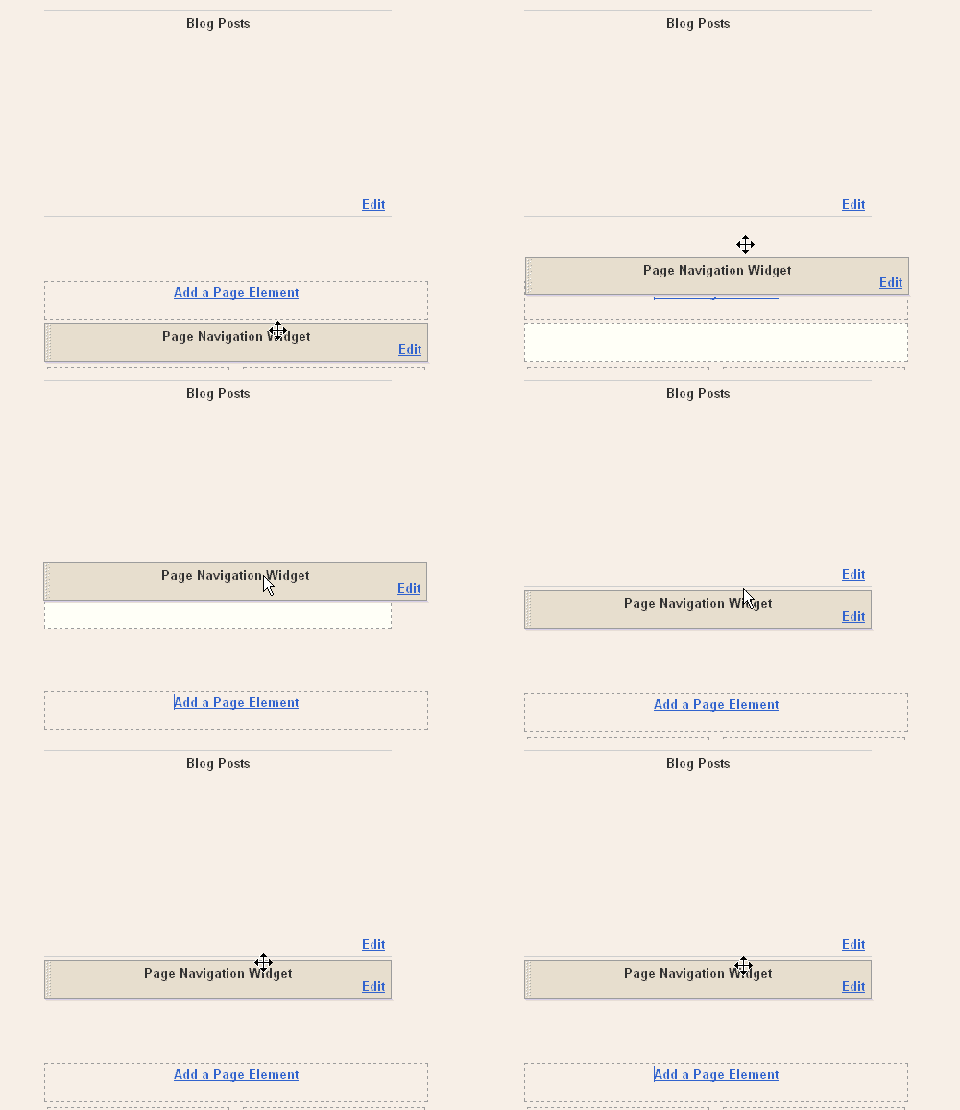
After Adding this Javascript you need to drag and drop the widget below the Blog Posts main widget. See this screen shot
Page Navigation Menu Widget
In the code above you can edit the lines in red to your wish .
1 : var pageCount = 5;
The digit in red represents number of posts to be shown in single page. Change the digit to show as many pages you want.
for example :
In my blog I have put that value as 2 . In each page you can see only 2 posts .
2 : var displayPageNum = 3;
here the digit in red represents number of pages to be listed.
For example :
In my blog I have chosen 3 , then 3 pages will be shown.
Now save your template .
That’s it now we have added Page Navigation menu widget to our blog successfully .

Colorful Link Hover Hack for Blogger

Today I have come with a really interesting and cool hack . This Hack is about changing Link Hover color with a simple Script. In all Blogs or website you can see only one Link Hover Color. But Here is cool javascript to add more colors to links. Here After I will add blogger hacks to my blog so that you guys can have an idea about that hack.
I Have added this Colorful Link Hover Blogger Hack to my Blog , you can check this hack by hovering your mouse cursor through links.
Colorful Link Hover Hack

In the Image above you can see that a single link is showing nearly 10 colors on Mouse Hover.

How to Add this Colorful Link Hover hack to my Blog ?
Its really very easy . Now Let us see how to add this Colorful Link Hover Hack in Blogger.
First login to your Blog and Navigate to Layout section . There click Edit HTML subtab .
Now search this following code </head> and add the below Javascript above the head section. If you Have any doubt please refer Image below .
<script src=’http://rias.techno.wizard.googlepages.com/rainbow2.js’/>
ColorFull Link Hover - Blogger hack
That’s it we have successfully Added colorful Link Hover Hack to Blogger .
Troubleshooting :
Sometime you may not see this hack because my Google page account bandwidth may be exceeded . Please upload the javascript to your own google page account.
Featured Post :
Tomorrow I am going to write about Adding Page Navigation Hack , don’t forget to subscribe. Only few blogger blogs have this feature (Mine is also one among them ).
Thanks for reading